
DraftGuard
Coming soon
Never lose what you typed into a website again.
- Chrome
- Edge
- Firefox

Browser extension by A2Z Tools
Screenshots that file themselves.
Capture visible, full-page or selected-area screenshots that are named and filed automatically by site, date and your own rules.
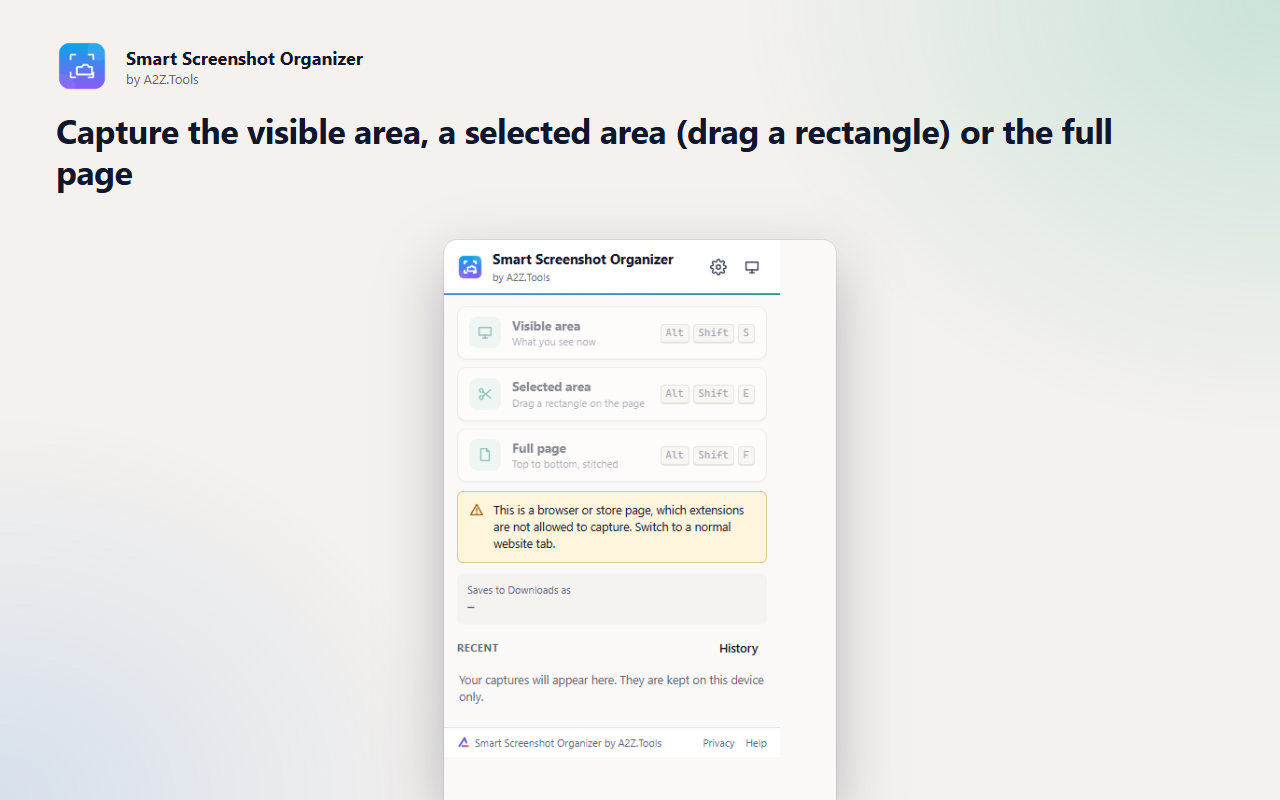
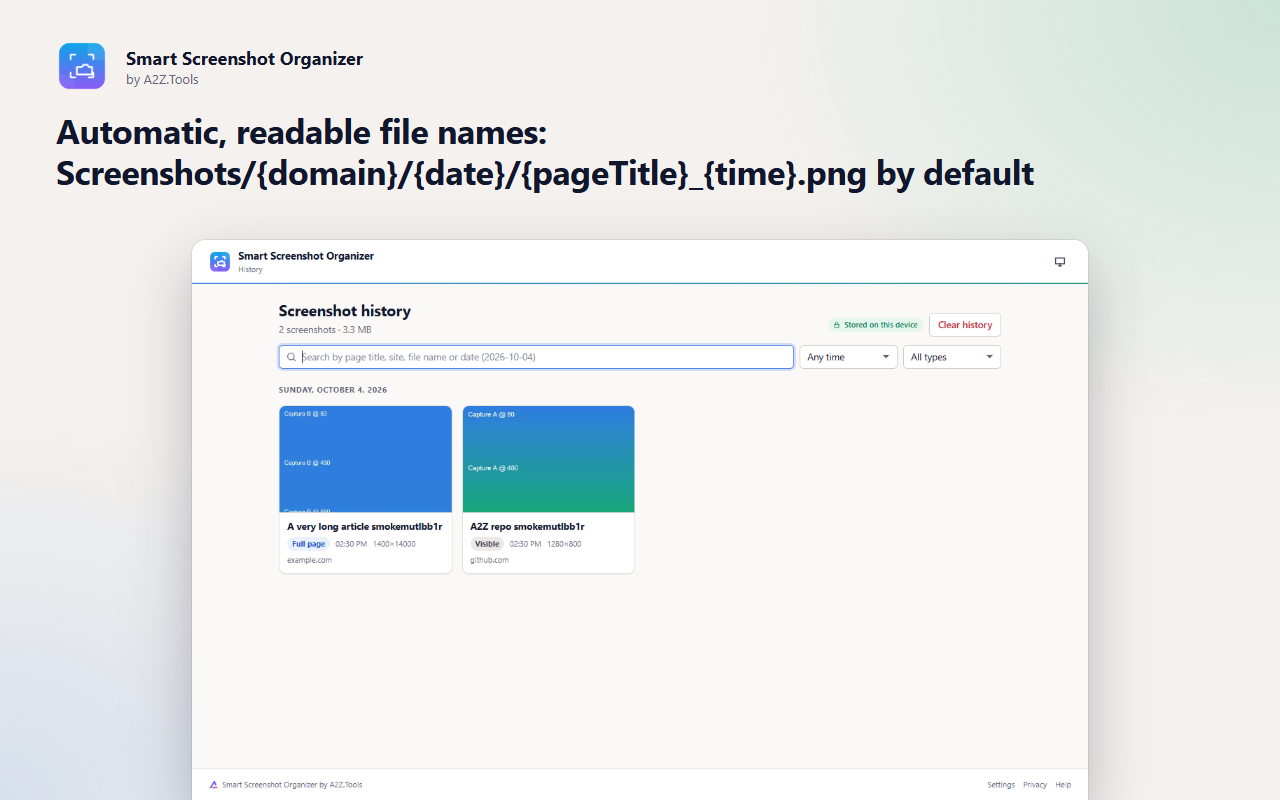
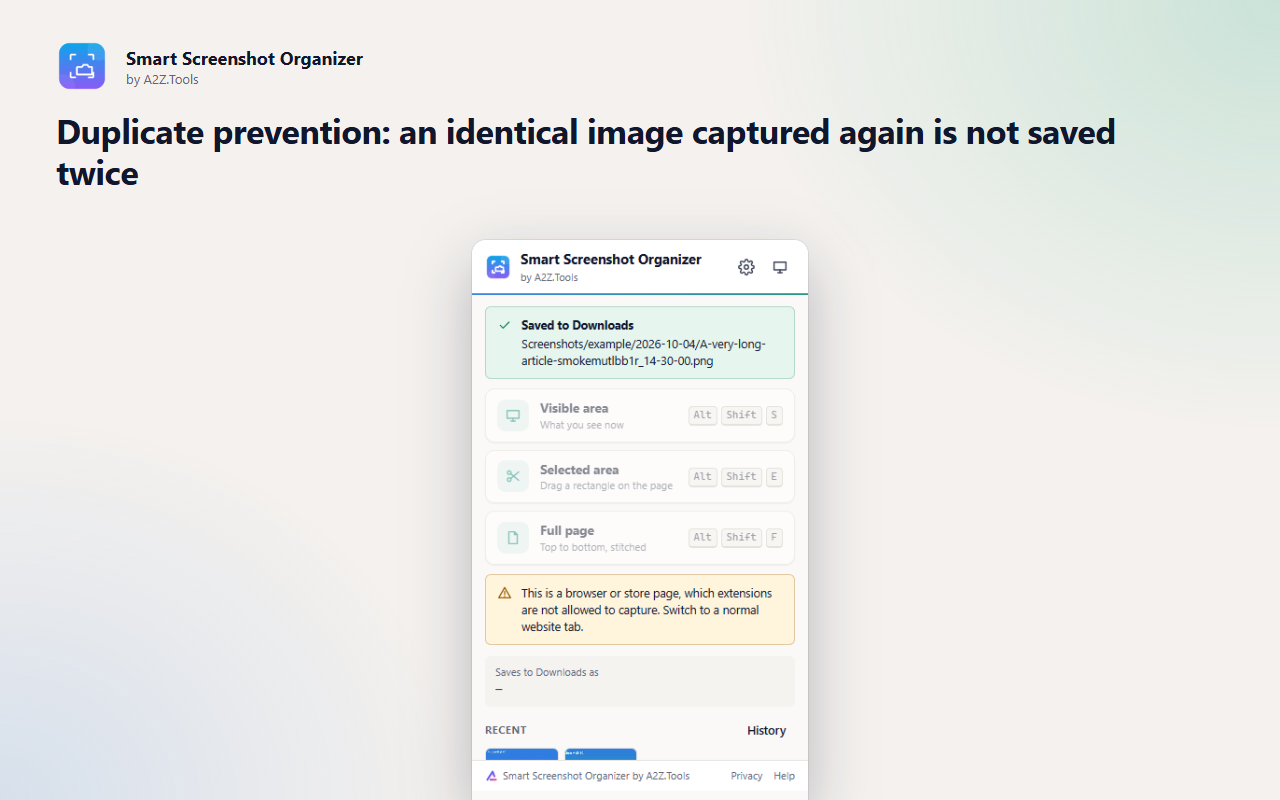
Smart Screenshot Organizer takes the clean-up out of screenshots. Every capture gets a readable name from the page title, site and time, and lands in a tidy folder such as Downloads/Screenshots/github/2026-10-04/ - so you can find it later without renaming anything.
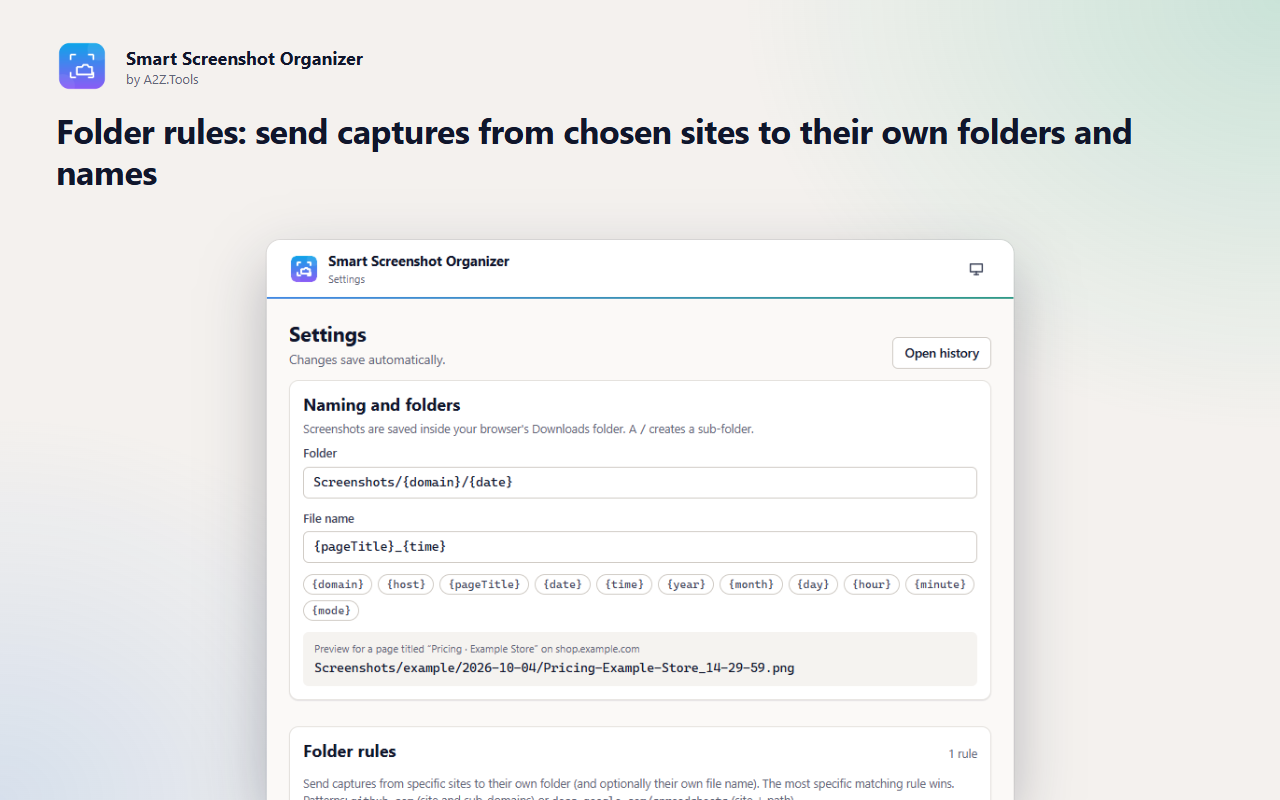
Capture what is on screen, drag to capture an area, or capture a whole page top to bottom. Folder rules file captures from chosen sites separately, duplicates are skipped automatically, and a searchable local history keeps thumbnails of recent captures. It only touches the tab you capture, when you capture it, and nothing ever leaves your device.
Shortcuts can be changed in your browser's extension shortcut settings.
Screenshots are taken only when you ask, saved to your Downloads folder, and listed in a history stored on this device. Nothing is uploaded. No account, no analytics, no tracking.
The pixels of the tab you capture, its title and address (for the file name and the history). Only for the tab and moment you choose.
Image files in your Downloads folder; capture history (image, thumbnail, title, address, time, file name) in the extension's IndexedDB; settings in storage.local. All on this device.
None. The extension makes no network requests.
History keeps your most recent captures (200 by default, configurable) until you delete them or clear the history. Files in Downloads are yours and are never deleted by the extension.
No account, no analytics, no advertising, no selling or sharing of data, and no remotely hosted code.
Lets the extension capture the tab you are on, only when you click the toolbar button, a right-click menu item or a shortcut. It gives no access to other tabs or sites.
Draws the area-selection rectangle on the page and scrolls the page for full-page captures, only on the tab you asked to capture.
Saves each screenshot into your Downloads folder under the organised folder and file name.
Saves your naming templates, folder rules and settings on this device.
Adds Capture visible area, Capture selected area, Capture full page and Open history to the right-click menu.
| Browser | Minimum version | Store |
|---|---|---|
 Google Chrome Google Chrome |
120 | Chrome Web Store |
 Microsoft Edge Microsoft Edge |
120 | Microsoft Edge Add-ons |
 Mozilla Firefox Mozilla Firefox |
140.0 | Firefox Add-ons |
Smart Screenshot Organizer is a powerful Firefox extension designed to streamline your screenshot management. It intelligently categorizes your captures based on content, date, or the source website, ensuring quick and efficient access. Whether you need to capture an entire webpage, a specific section, or just the active tab, this extension provides flexible options to suit your needs. Ideal for professionals, researchers, designers, and anyone looking to keep their screenshots organized, it enhances productivity by eliminating the hassle of manually sorting images. Stay focused and let Smart Screenshot Organizer handle the organization for you!
In your browser's Downloads folder, inside sub-folders built from your naming template - by default Screenshots/<site>/<date>/<page title>_<time>.png. You can change the template and add per-site folder rules in Settings.
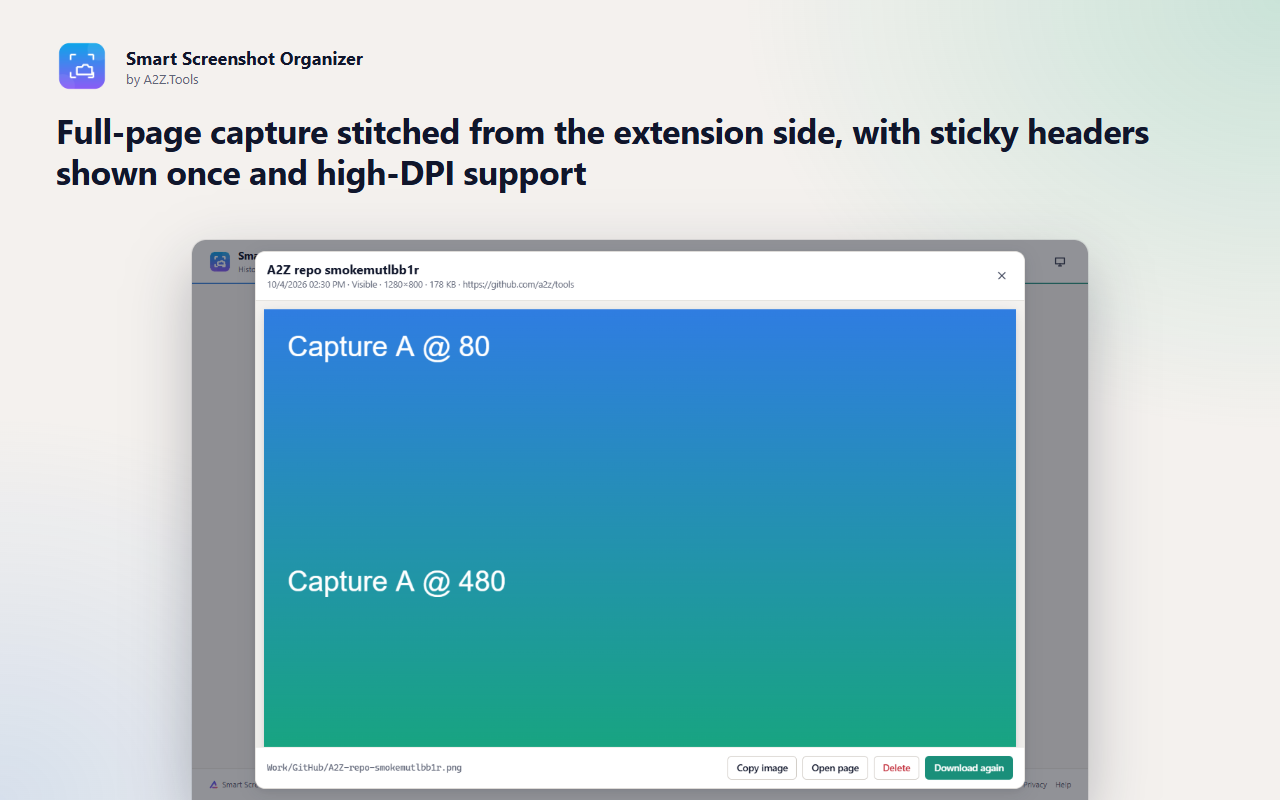
Yes. Full-page capture scrolls the page, captures each screen and stitches them into one image, showing sticky headers only once. Extremely long pages are scaled down to stay within browser limits.
No. Screenshots are saved to your Downloads folder and the history is stored in the extension on your device. The extension makes no network requests.
By default an identical image captured within 30 minutes is not saved again, and you are told which earlier capture it matches. You can switch this off or change the time window.
It uses the activeTab permission: when you click the button, a menu item or a shortcut, the browser lets it capture just that tab.
Coming soon
Never lose what you typed into a website again.

Coming soon
Every A2Z.Tools utility one keystroke away.

Coming soon
Tell me when this part of a webpage changes.
Questions, bugs or ideas for Smart Screenshot Organizer? Contact the A2Z Tools team.